Field Mapping
After object configuration, map PrimeRole system fields to your Salesforce fields to ensure accurate data transfer.
Standard Field Mapping Interface
The field mapping interface displays:
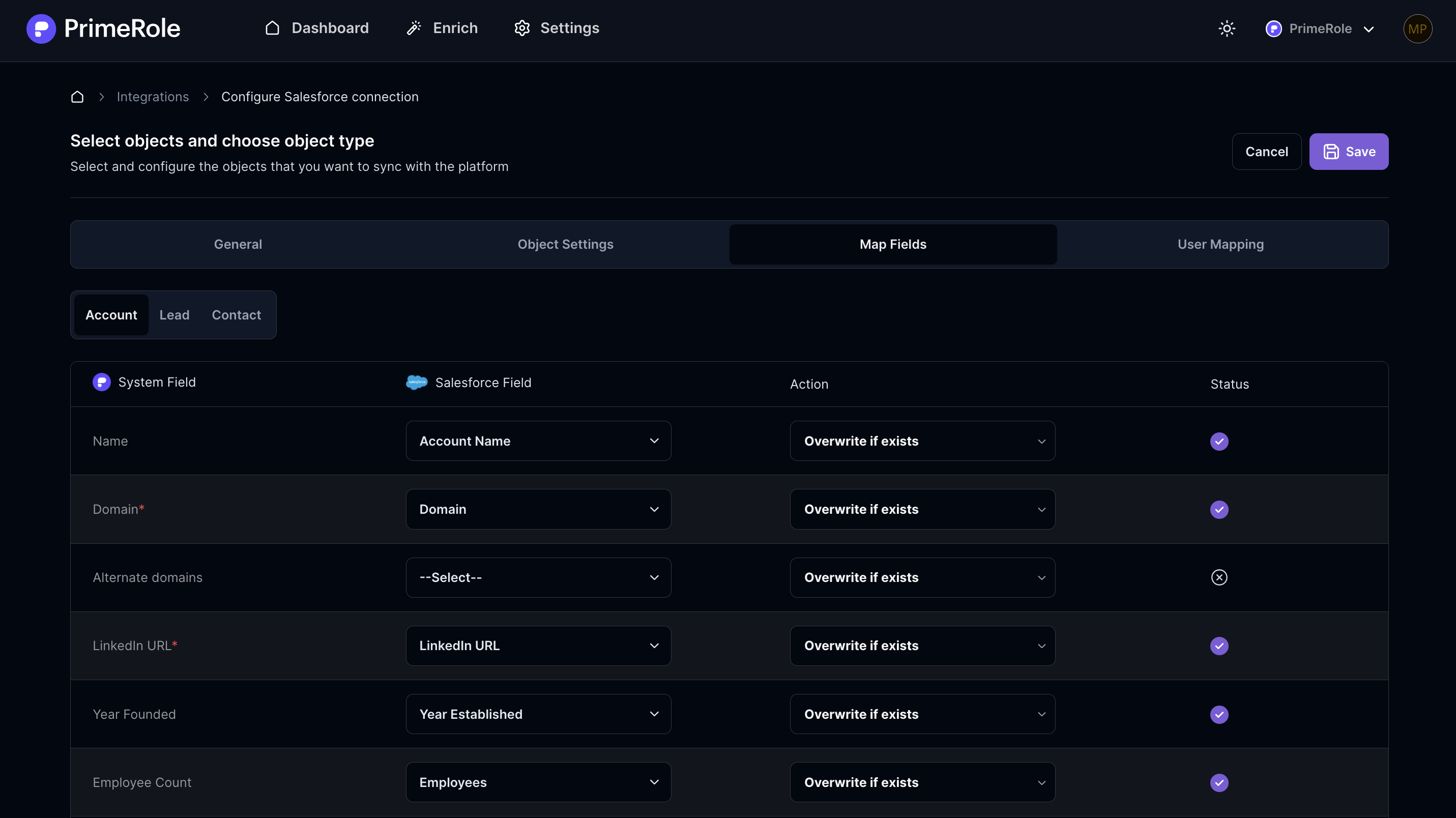
- PrimeRole Field: The name of the PrimeRole system field (required fields are marked with an asterisk *).
- Salesforce Field: A dropdown menu to select the corresponding Salesforce field (required fields are marked with an asterisk *).
- Action: Defines data handling during synchronization:
- Overwrite: Always overwrites the existing field value.
- Add if empty: Only populates the field if it is currently empty.
- Status: A visual indicator of the current mapping status.
Standard Mapping Guidelines
- Each PrimeRole system field can be mapped to a corresponding Salesforce field.
- Required fields in both systems are marked with an asterisk (*).
- Default mappings are provided for standard Salesforce fields.
- The system will display warnings if required fields are not mapped.
Advanced Mapping Options
Some fields offer advanced mapping (accessible via an "Advanced" button):
- Country Field Advanced Options: Allows mapping to various country formats (Full name, Alpha-2 code, Alpha-3 code, Numeric code).
- Email Verification Status Mapping: Enables mapping system values (Empty, Valid, Invalid, Catch all, Free, Disposable) to existing Salesforce values.
Custom Field Mapping
Two types of custom fields can be added:
- Custom Text Field: Can be mapped to any Salesforce field. Salesforce validation errors will be displayed to users.
- Custom Dropdown Field: Can be mapped to Salesforce picklist fields. Displays Salesforce picklist values and maintains data consistency.
Additional Considerations
- Field mapping compatibility is based on data format compatibility with Salesforce.
- Advanced mapping is available for select fields only.
- Thoroughly test custom field mappings before deploying to production.