LinkedIn Request
PrimeRole helps you personalize your LinkedIn connection requests to increase acceptance rates and build stronger professional relationships.
Accessing the LinkedIn Request Feature
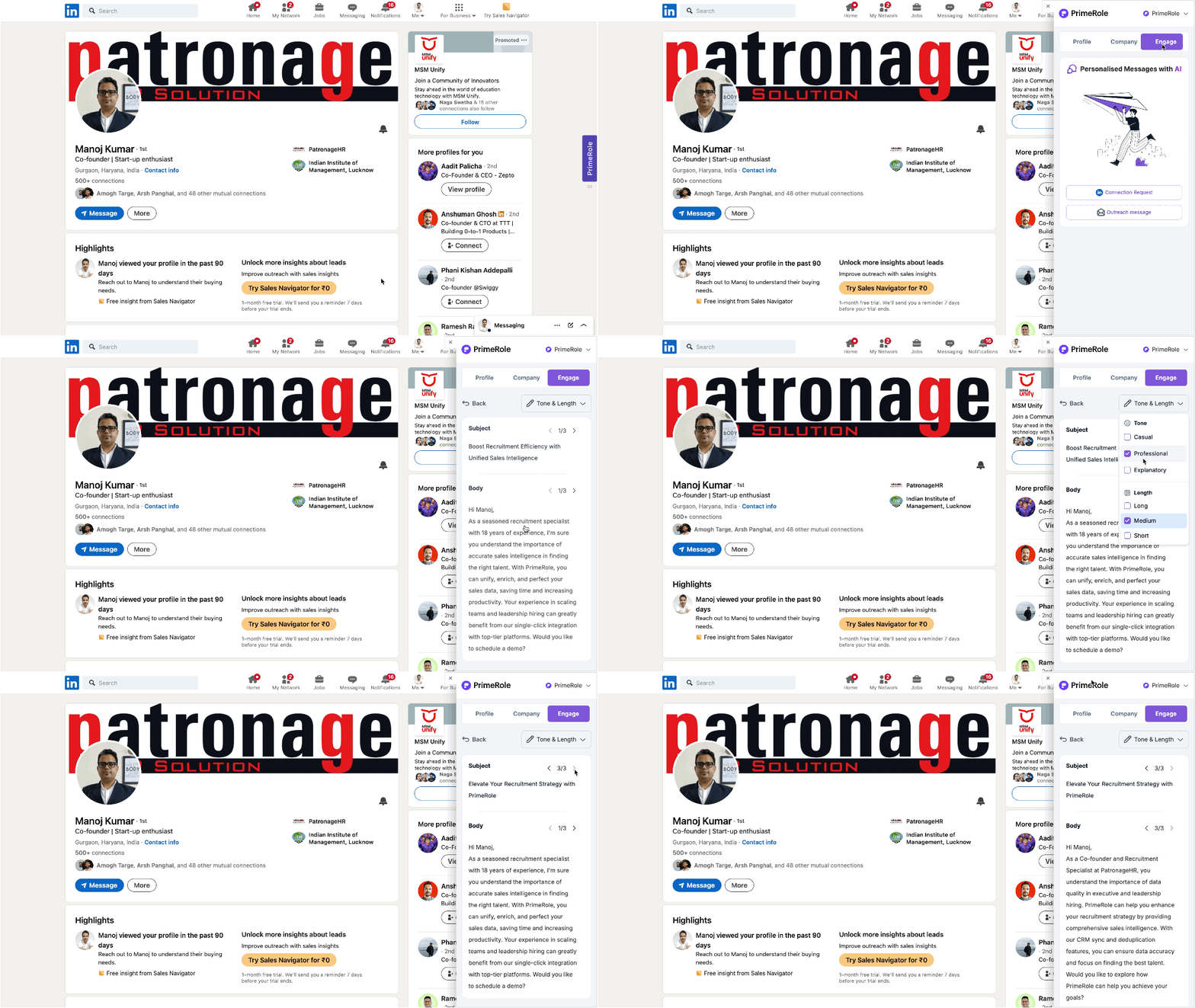
- Access Prospect's LinkedIn Profile: Open your LinkedIn account connected to your PrimeRole workspace and navigate to the profile of the person you wish to connect with.
- Activate PrimeRole Extension: The extension should activate automatically. If not, click the PrimeRole icon on the edge of your LinkedIn screen.
- Open the "Engage" Tab: Within the PrimeRole extension, select the "Engage" tab.
- Select "LinkedIn Connection Request": Choose the "LinkedIn Connection Request" option.
Customizing Your Connection Request
PrimeRole offers options to tailor your connection request:
- Available Tones: Select the appropriate tone based on the prospect's profile and your relationship with them:
- Casual: For informal connections and networking.
- Professional: For formal business connections.
- Explanatory: For requests where you want to provide more context about why you're connecting.
- Length Options: Choose a message length that suits your objective:
- Short: For quick and concise requests.
- Medium: For adding a brief personal touch.
- Long: For providing more detail about your background or reason for connecting.
Sending Your Request
After getting your message, review it carefully. Now you can copy it and use it .
Best Practices
- Avoid generic connection requests. Personalization is key.
- Proofread your message for typos and grammatical errors.
- Be mindful of the prospect's industry and seniority level when choosing the tone and length of your message.